Para editores e proprietários
Layers and editing
Make layers, add fields, load files into them, calculate areas and lengths, draw, change, merge and clip features, and work on delivered data through editable copies.
Esta página ainda não está traduzida para o seu idioma; é mostrada em inglês.
Cartema keeps two kinds of layers apart: the layers delivered to your organisation, which stay exactly as delivered, and the layers you make and maintain yourselves, which you can shape as you need — the way ArcGIS users work with feature classes.
Who can do what
| In an app with editing on | In an app with editing off | |
|---|---|---|
| Owner, admin, editor | Everything on this page | Read only |
| Viewer | Read only | Read only |
Editing is decided app by app. It is off in every app until someone switches it on, so an app of official data stays read-only whatever its layers are set to.
Switching editing on
In Studio → Apps, open the app and set Editing in this app to On. The change is saved at once and kept in the app's history. Setting it back to Off hides every tool on this page and refuses every change, without deleting anything.

Below it, the app's layer list has an Editable box for each layer: it says which layers' features can be changed while editing is on. Layers made or copied from the map are editable from the start.
Making an editable copy of a layer
To work on a layer you cannot edit — a delivered survey plan, a cadastre, a block's properties — make a copy of it that is yours:
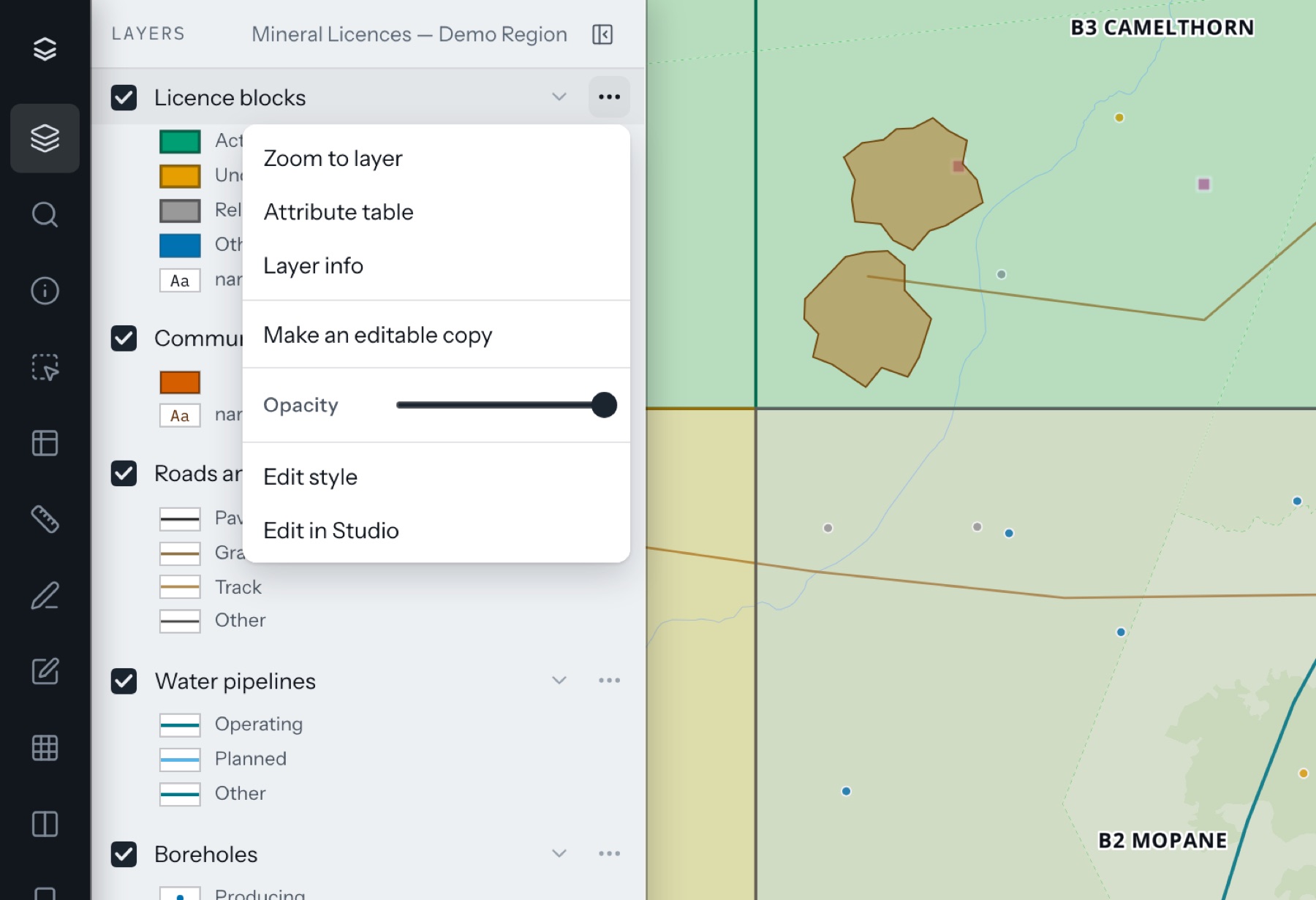
- In the layer list, open the layer's menu (…) and choose Make an editable copy.
- Name the copy and choose Make the copy.
The copy is switched on and editable, with every feature the layer shows (a layer filtered to one block copies that block), every attribute with its rules, and the same style. Put the copy in place of the original in this app is ticked to start with: the copy takes the original's place in the layer list, so nothing is drawn twice. Untick it to keep both. Either way the original stays in the workspace's data exactly as it was, and the copy remembers which feature each of its features came from — so when it is handed back (see My layers), the features it changed are updated rather than added a second time.
Making a new layer
- Open Edit features in the left rail and choose New layer.
- Give it a name and choose Points, Lines or Polygons.
- Describe its fields. Each has an Alias (the name people read, in any language), a Column name (lower-case letters, digits and _; written for you from the alias), a Type, and under the arrow its Rules.
- Under Look, choose how it is drawn: its colour, and for areas the fill and outline, for lines the width, for points the Size and Shape (see A layer's look).
- Choose Create layer. It appears at the top of the app, ready for its first feature.
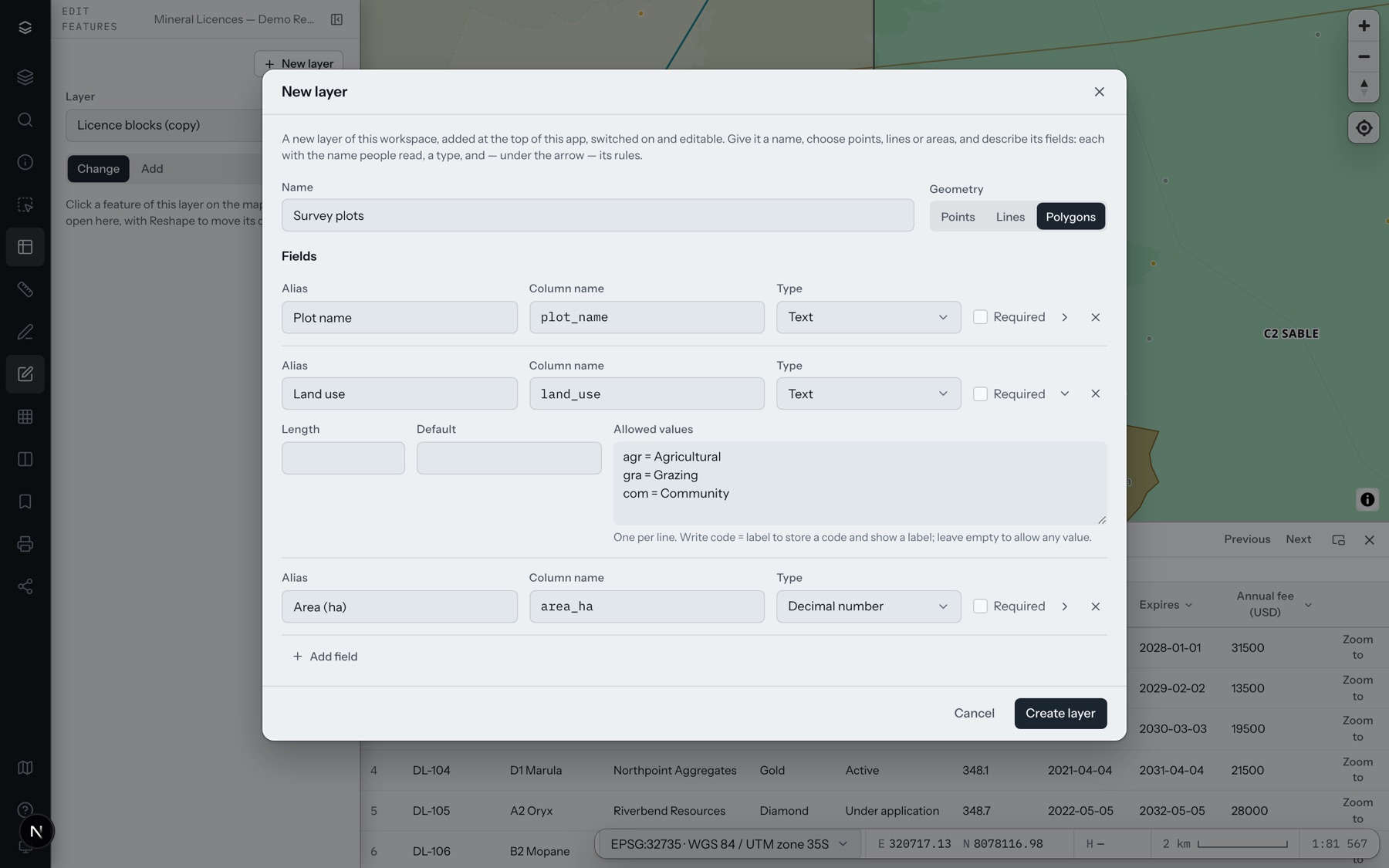
Types: Text · Whole number · Decimal number · Yes / no · Date · Date and time.
Rules:
- Required — a feature cannot be saved without a value.
- Default — the value a new feature starts with; when a field is added to a layer that has features, they all take it.
- Length — for text, the most characters it keeps.
- Allowed values — one per line;
res = Residentialstores “res” and shows “Residential”. The form then offers a list, and any other value is refused.
A layer's look
Style in a layer's … menu changes how it is drawn, on the map as you choose, until you Save or Cancel. The same choices are under Look when you make a layer.
- Colour: one of nine, or another from the colour picker. By a field gives each value of a field its own colour instead; open a value in the list to change it.
- Shape, for points: a circle, a square, a triangle, or Icon, which opens the icon library — utilities, water, electricity, gas, wells and geology, topography. Type in Find an icon to look one up by name, or browse the groups, and click one. The colour and Size apply to the icon as to a shape, and it is drawn the same in the legend, in print and in the mobile app. The icon's button shows the chosen one; click it to choose another.
- Icon of a value, for points coloured By a field: open a value and choose its own icon, so each value can have its own symbol as well as its own colour. As the layer — the default — draws the value with the layer's shape or icon, in the value's colour.
- Label on the map: a field whose value is written beside each feature.
Studio's style editor has the rest — ranges of a number, hatching, signs of a standard (see Styles and layouts).
Adding a layer from the workspace's data
A layer that is already in the workspace's data can be put into the app from the map by the app's managers: the workspace's owners, administrators and editors, and a client's owners and administrators in the client's apps. It does not need the app's editing to be on, since it changes the app, not its data.
- Open Layers and choose Add from data (the database button beside the Find a layer or folder box).
- Find the layer: open the data's folders, or type part of its name in Search the data.
- Choose the layer, and under Put it in the folder of the app's layer list it goes to (or the top of the list).
- Choose Add to the app. It is added for everyone who opens the app, switched on, with its usual style, and the app keeps the change in its versions as any other change.
The list holds only the data you may use in this app: what you can see, as far as this app's own area goes. A shared layer that several areas or clients use — one table of parcels cut by a district code, for example — is offered marked This app's part, and only the part this app's area already uses is added. Data that belongs to another client of the workspace is never offered. To place a layer in several apps at once, or a different part of a shared layer, use Studio → Datasets.
Drawing and changing features
In Edit features, choose the layer at the top of the panel. Only that layer's features can be picked.
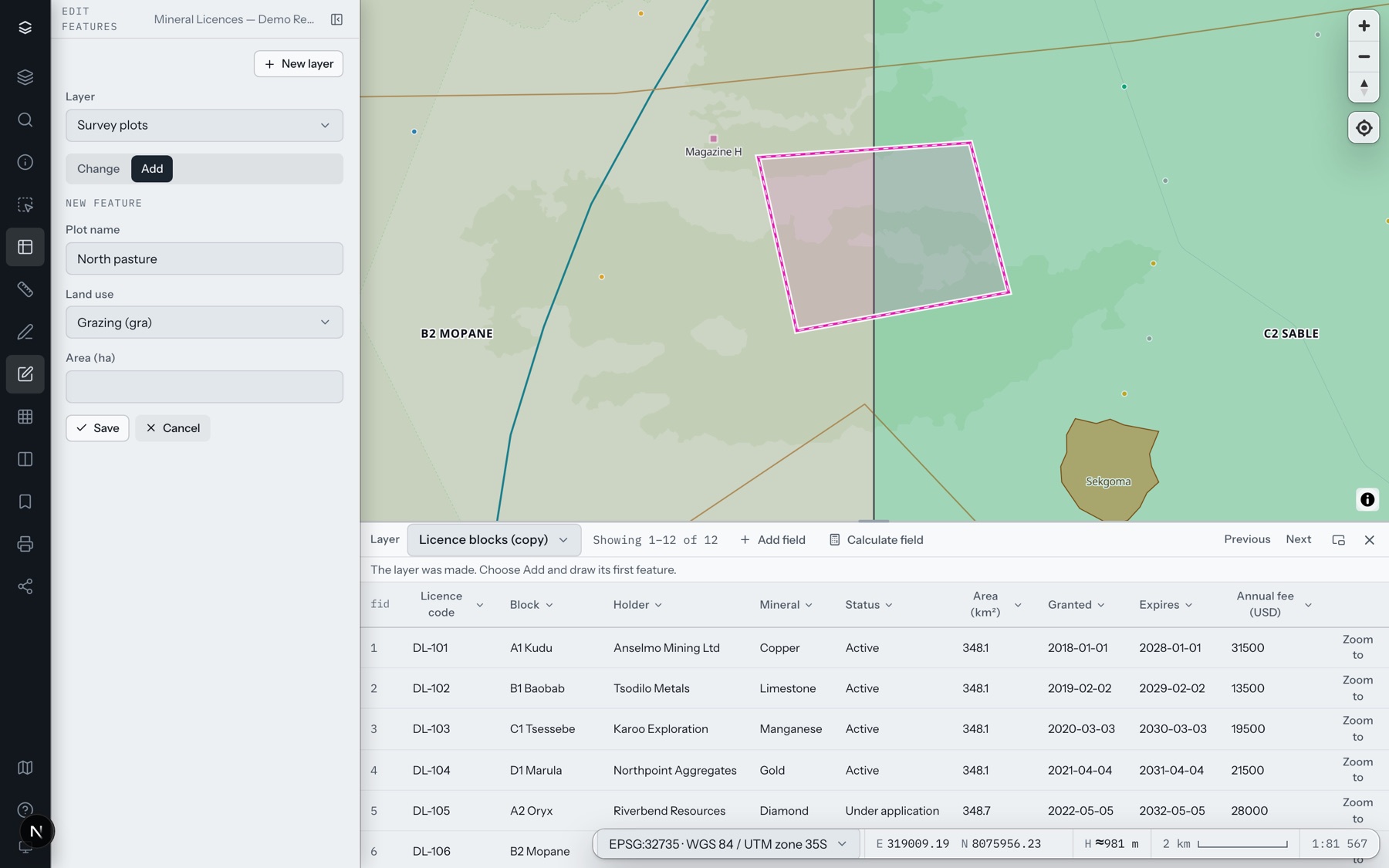
- A new feature: choose Add and click on the map — once for a point, point after point for a line or an area, then Finish shape. Fill in the form and Save.
- A rectangle or a circle: on a layer of areas, Add offers Free, Rectangle and Circle. A rectangle is dragged on the map from one corner to the opposite one, a circle from its centre outwards; the form opens when you let go.
- A shape from a drawing: when drawings are shown on the map (the Draw tool), Add lists their shapes that fit the layer — areas for an area layer, lines for a line layer, points for a point layer — under Copy a shape from a drawing. The chosen shape becomes a new feature of the layer; the drawing stays as it is.
- Snap: while you add a feature, split, reshape one or drag one whole, each corner you place or drag (or the point you hold a moved feature by) goes to the nearest corner — or else the nearest edge — of the layers shown on the map, within the distance in pixels beside Snap. A ring on the map shows where the next corner will go: filled on a corner, hollow on an edge. Snapping is on by default; switch it off to place corners freely.
- Right angles: for lines and areas, each new corner is placed square to the side before it, and Finish shape squares the last corner too — three clicks draw a rectangular building of any orientation. A corner that snapped to something is left where it snapped.
- A layer the app filters — a shared layer shown in each app only for its own area or client, by a field such as a district code — fills that field in for you on a new feature, from the app's filter (or offers its values to choose from), so what you draw stays in the app; an editable copy of such a layer keeps the filter.
- Change a feature: choose Change and click it on the map. Its attributes open in the panel; change them and Save.
- Move: after clicking a feature, drag it on the map to its new place. The whole feature moves, every corner alike, and it is saved when you let go, as one change in its history — values typed in the form and not saved yet stay in the form. With Snap on, the point you hold goes to the nearest corner or edge.
- Reshape: after clicking a feature, choose Reshape. Drag a corner to move it, drag a small midpoint to add one, drag the shape itself to move all of it, press Delete to remove the corner you hold, then Save.
- Duplicate: after clicking a feature, choose Duplicate. A copy with the same attributes is made on the same spot and opens in the panel, ready to be moved by dragging it or with Reshape.
- Delete feature removes it, after asking.
- History, under the form, lists every change to the feature — who, what, when — with Restore beside each earlier version (see below).
- Measures fields — the Shape_Length and Shape_Area that layers from ArcGIS and CAD carry (also length and area, and the same names in other languages) — are filled in on every save of a shape, in metres and square metres on the ground, so they never keep the old shape's value.
If someone else saved the same feature after you opened it, your save is refused with a message rather than overwriting their work: open the feature again and save yours on top.
Loading a file into a layer
A layer that already exists — one made in Cartema and still empty, or one you keep up to date — can take the features of a file. Choose Load into this layer at the top of Edit features (it loads into the layer chosen there), or on the layer's page in Studio → Datasets.
- Choose the File: a zipped shapefile, KML or KMZ, GeoJSON, GeoPackage, CSV or Excel (.xlsx, .xls, .ods), DXF or DWG. For a file that carries no coordinate system — a CAD drawing, a shapefile without its .prj — choose its Coordinate system. Choose Upload: the file is read beside the layer, and nothing is added yet.
- Part of the file: a file with several layers, a workbook with several sheets, or a drawing — its lines, areas, text and points — offers its parts; choose the one to load. It must hold the layer's kind of shape: points into a layer of points, lines into lines, areas into areas. Shapes in several parts are accepted wherever the layer takes them.
- Points from columns, for a CSV or a spreadsheet: choose the columns for X or longitude and Y or latitude (columns with the usual names are chosen for you) and their Coordinate system. Such a file loads into a layer of points.
- Fields: each field of the file goes into the layer's field of the same name or label. Change any of them, or choose — not loaded; the fields not loaded are listed under them.
- Choose Add to its features, or Replace all its features (see below), and Load.
The shapes are brought into the layer's coordinate system, and every value is converted to its field's type: numbers with a decimal point or a decimal comma, dates as 2026-10-20 or day first (20/10/2026), yes and no in English, Portuguese or Hebrew. A row is loaded when every value fits its field — the field's rules included — and the row lies inside the app.
When it is done, the window says how many features were added, how many rows were skipped (no shape, a shape of another kind, or outside the app) and how many had errors (a value that does not fit its field), and offers Download the rows not loaded: a spreadsheet with each row's number in the file and the reason. Studio → Jobs keeps the same record.
- Every loaded feature has a history row, Loaded from the file's name, and can be changed, restored or deleted like any other. Lengths, areas, who made it and when are filled in as on a save.
- In an app that shows only part of a shared layer, the app's field is filled in with the app's value where the file leaves it empty; a row with another value is not loaded.
- A layer with a definition query (see Studio: apps) takes only the rows it would show, and Replace all its features removes only the features it shows; the other rows are skipped and listed.
- Fields kept to the workspace's team are not offered to a client's people, and keep the value Cartema gives them.
- Replace all its features is for the workspace's team — its owners, administrators and editors — and for the author of a layer in My layers; a client's people, their owners and administrators included, add to a layer. It first removes the features the layer has in this app — after asking once more — then loads the file. Each removed feature keeps its history and can be restored from it. If nothing in the file can be loaded, the layer is left as it was.
- A load takes a file of up to 512 MB and up to 200,000 features.
- A file that was read but not loaded is discarded after a day; Cancel discards it at once.
Going back to an earlier version
Nothing in a feature's history is ever rewritten. Going back is a new change of its own, recorded in the history with your name like any other save, so it can itself be undone the same way. Versions are kept for 90 days (longer where your plan says so); the history lists the ones still kept.
- Undo and Redo, the two arrows at the top of the panel, take your own changes in Edit features back one step at a time, and put them back — a save, a move, a restore, a feature added or deleted — since you opened the app. A change of several features at once is one step: a Split (the new pieces are removed and the features get their shape back), a field changed on all the selected features, or copies made with Duplicate. Ctrl+Z (⌘Z on a Mac) undoes and Ctrl+Shift+Z (⌘⇧Z) redoes, except while you type in a field. A step on a feature that someone else has changed since is refused and left as it is; a step of several features is refused whole if any one of them has changed.
- Restore a version: click the feature, and in its History choose Restore beside the version you want. Its shape and its values come back as a new version; the history then shows Restored version ….
- Bring back a deleted feature: right after Delete feature, choose Bring back beside the Deleted message. The feature returns as it was, with its number and its attached files.
- Undo my last edits, at the top of the panel, takes back your own latest editing session on the chosen layer: the changes you made there in the last 24 hours, back to the first pause of more than 30 minutes between two of them. The panel says how many changes to how many features it will undo, and when they were made; confirm with Undo them. Each feature goes back to what it was before your first change of the session: one you added is removed, one you deleted comes back. It works once per session — what you change afterwards is the next session.
What a restore or an undo writes follows the same rules as a save:
- Only whoever may edit the layer can use them, and not while the workspace is read-only.
- Fields you cannot see in this app keep their current values.
- In an app that shows only part of a shared layer, a version that would move the feature out of the app is refused, and a feature that is no longer in the app is left alone.
- If someone else changed the feature after you opened it, the restore is refused with the same message as a save. Undo my last edits never touches someone else's work: a feature someone changed after you is left as it is, and the panel says how many were left.
Several features at once
Select features of the layer being edited — with the Selection tool, or by picking rows in the attribute table — and open Edit features on Change. The panel shows how many are selected, with two tools:
- Duplicate them, on the same spot, into — this layer, or another editable layer of the app that takes the same kind of shape. Attributes are carried over by field name; a field the other layer does not have is left out, and a field you cannot see in this app is not carried into another layer. Each copy is a new feature: who made it and when are yours, its length or area is measured again, and in an app that shows only part of a shared layer the copy gets the app's value, as a feature drawn there does. Features of your own layers under My layers are copied within the same layer.
- Change a field on all of them — choose the field and its new value, then Apply to …. Every selected feature gets the value, each as a change of its own in its history, with the same checks as a save: a value the field does not take, or one that would move the features out of the app, is refused and nothing is written. Features that already had the value are left alone; the workspace's team is told how many those were, a client's people how many features hold the value now.
Merging, splitting and clipping features
Three more tools in Edit features, as in ArcGIS: Merge joins features into one, Split cuts lines and areas in two with a line you draw, Clip cuts features with an area you draw. They work on the layer chosen at the top of the panel, keep a history of every feature they change, and either do everything or nothing.
Merge
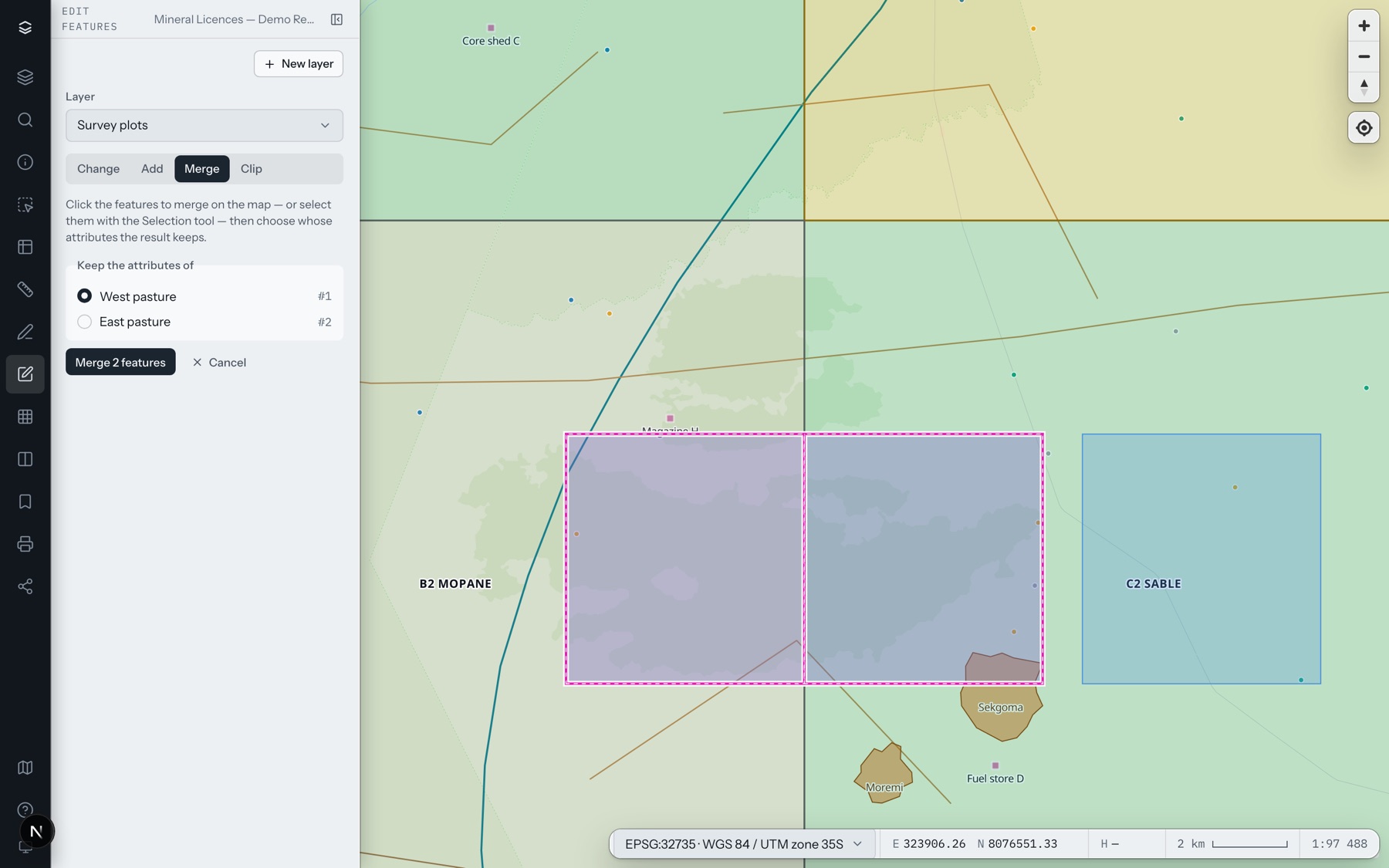
- Choose Merge.
- Click the features to merge on the map — a second click takes one out again. Or select them first with the Selection tool and choose Use the selected features.
- Under Keep the attributes of, choose the feature whose name, land use and other attributes the result keeps.
- Choose Merge. The features become one; the others are removed.
Lines that meet end to end become one line. Points cannot be merged, and a layer that takes one part per feature (delivered data often does) refuses a merge of features that do not touch.
Split
- Choose Split and draw the cutting line on the map: click its points, and double-click the last one (or press Finish shape).
- Choose Apply split.
It splits the selected features of the layer that the line crosses, if any are selected; otherwise every feature of the layer the line crosses. For each one, the biggest piece keeps the feature — its number, its history and its attached files — and every other piece becomes a new feature with the same attributes. Lengths and areas are measured again on every piece. A feature made of several parts, or one the line only touches without cutting it from side to side, is left as it is, and the panel says how many. Draw again starts a new line. To put the pieces back together, use Merge.
Clip
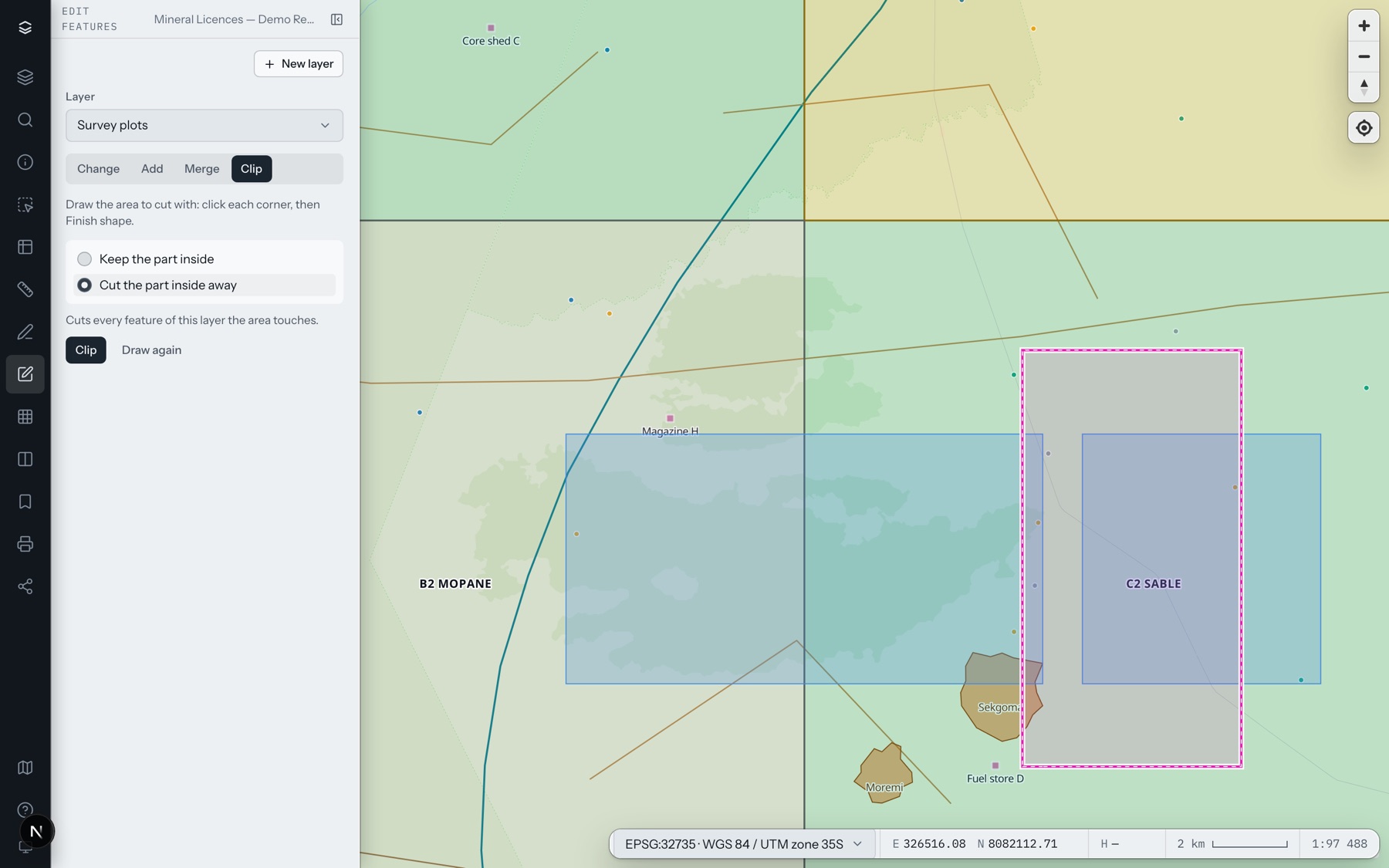
- Choose Clip and draw the cutting area on the map: click each corner, and double-click the last one (or press Finish shape).
- Choose what to keep — Keep the part inside the area, or Cut the part inside away — and, under Write the result to, where the result goes:
- A new layer (this layer stays as it is) — give the new layer a Name, and choose the App it goes to (this app, or another app of the same client that you may add layers to) and its Folder: the top of the layer list, one of the app's folders, or a New folder you name. The new layer keeps the layer's fields, and a field kept to the workspace team stays so.
- This layer: cut its features — the layer's own features are changed, for everyone who uses it. Cartema asks you to confirm with Cut the layer.
- Choose Apply clip.
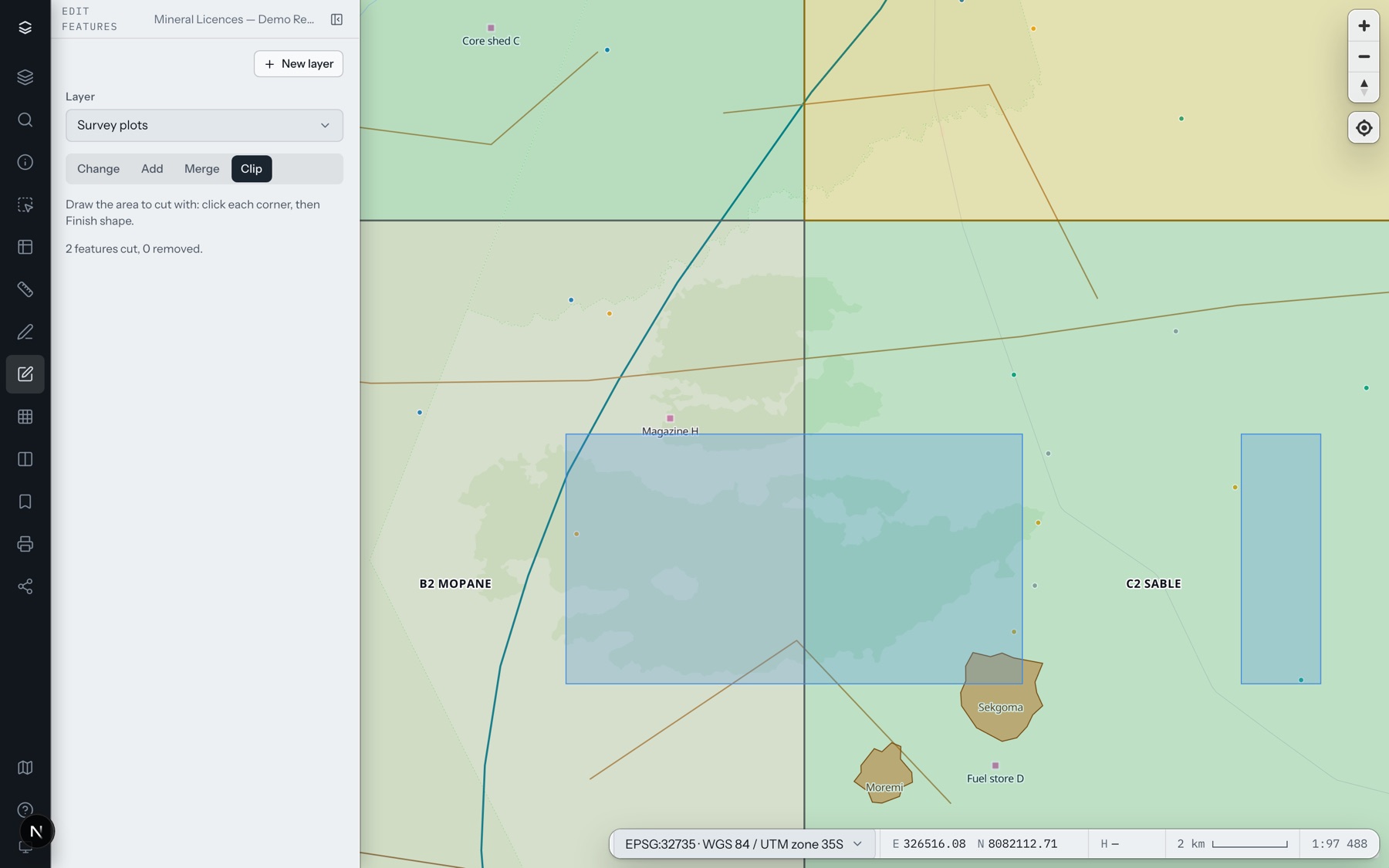
It cuts the features of the layer that are selected, if any are; otherwise every feature the area touches. A feature left with nothing is removed. The panel says what was done: how many features were cut and removed, or the new layer's name, where it was made and how many features it holds. After cutting the layer itself, Undo clip puts every feature back as it was. Draw again starts a new area.
Your own layers under My layers are always cut in place.
Fields in the attribute table
Open the table with Attribute table in the rail, or in a layer's menu, and choose the layer at its top left. On an editable layer the table's bar offers Add field (on layers made or copied in Cartema) and Calculate field. Each column's small arrow opens its menu: Sort ascending, Sort descending, Statistics, Move left, Move right, Hide column, Freeze up to this column, Reset columns, Calculate field, Delete field.
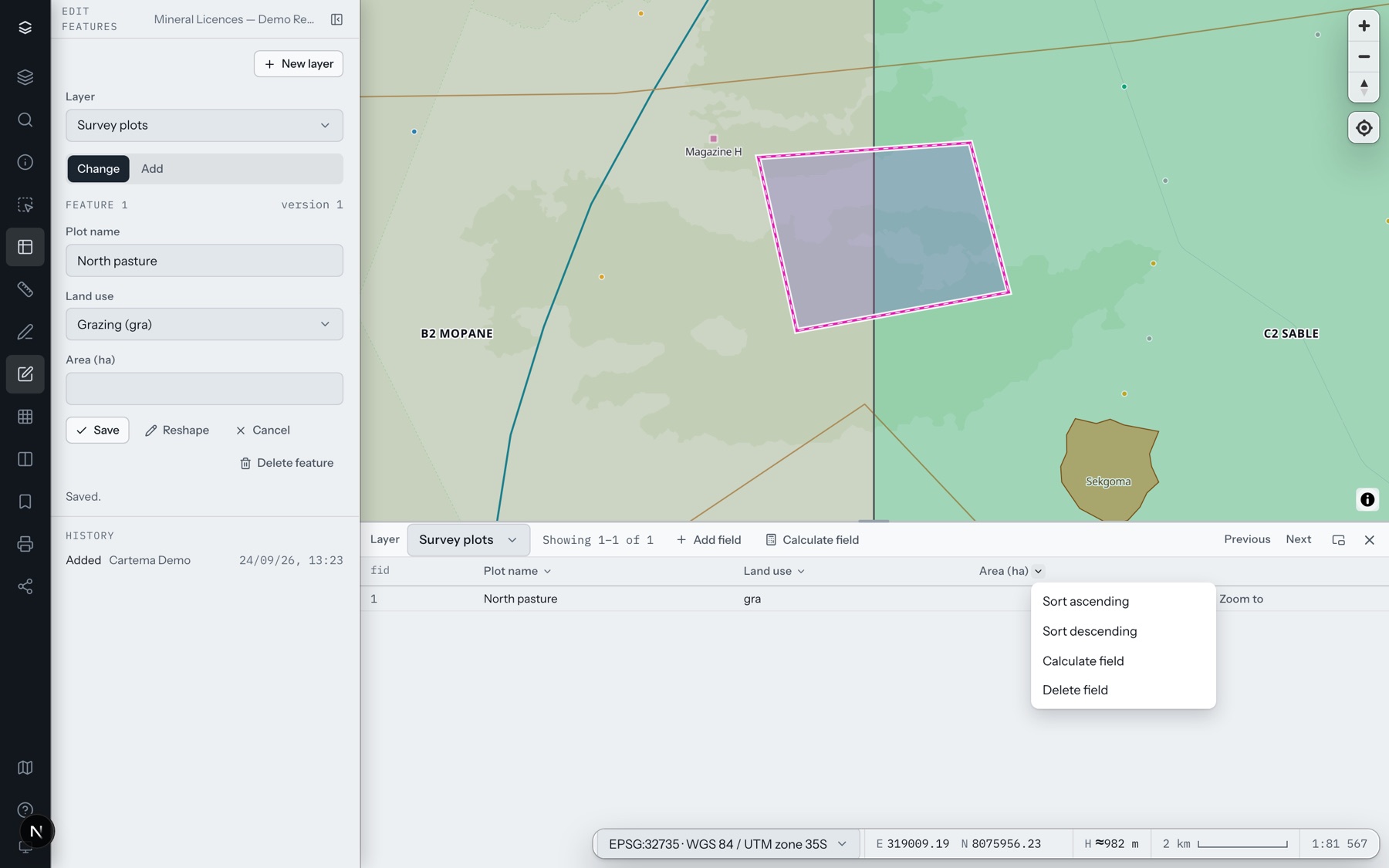
Fields can be added and deleted only on layers made or copied in Cartema: a delivered layer's columns belong to its deliveries. Deleting a field removes its values; each feature's history keeps what they were.
Calculating a field
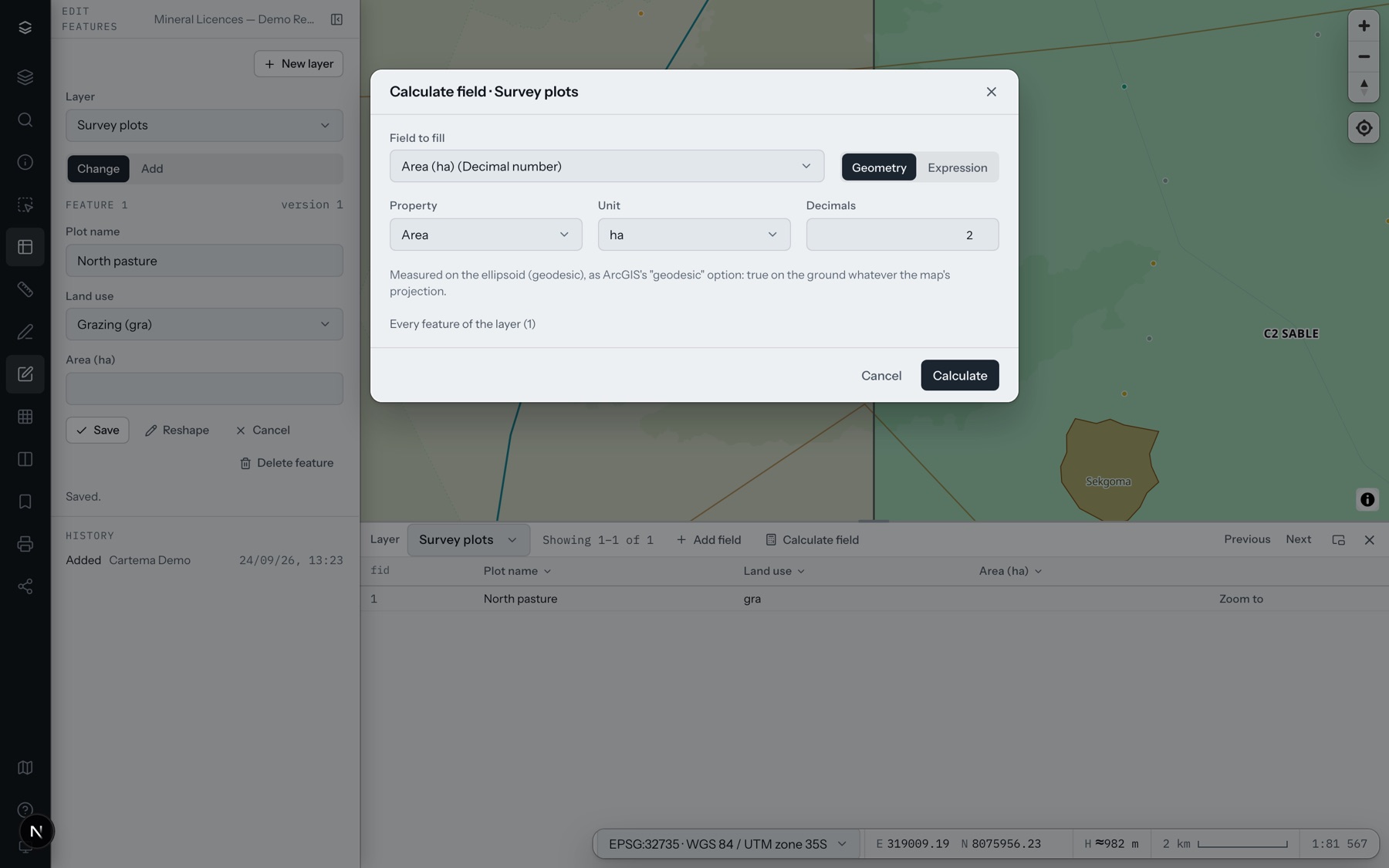
Calculate field fills a field for every feature — or only for the selected ones, when features of the layer are selected on the map.
From the geometry
| Property | For | Units |
|---|---|---|
| Area | Polygons | m², ha, km², dunam, acre |
| Perimeter | Polygons | m, km, ft, mi |
| Length | Lines | m, km, ft, mi |
| X, Y | All | In a coordinate system of the app, e.g. a national grid or WGS 84 |
Areas and lengths are measured on the ellipsoid (geodesic): true on the ground whatever the map's projection. X and Y use the same coordinate definitions as the numbers under the pointer.
From an expression
| Write | Means | Example |
|---|---|---|
[field] or !field! |
A field, by column name or alias | [area_ha] * 10000 |
'text' |
Text (a quote inside is written twice) | 'Lot ' & [number] |
+ − * / |
Arithmetic (dividing by zero gives an empty value) | ([a] + [b]) / 2 |
& |
Joins text | [street] & ' ' & [house] |
$area $perimeter $length |
The feature's own measurement, in m² or m | round($area / 1000, 2) |
$x $y |
Longitude and latitude (WGS 84) | round($y, 6) |
fid |
The feature's number | 'P-' & fid |
Functions:
- Numbers:
round(x)round(x, n)·absfloorceil·sqrt(x)·power(x, n). - Text:
upperlowertrim·lenleft(t, n)right(t, n)·mid(t, start)mid(t, start, n)(the first character is 1) ·replace(t, find, with)(every occurrence; capitals count) ·concat(…)·coalesce(…). - Dates:
today()now()·year(d)month(d)day(d)·dateadd(d, days)(a negative number goes back) ·datediff(d1, d2)(the days from d2 to d1). For exampledatediff(today(), [survey_date])is the age of a survey in days.
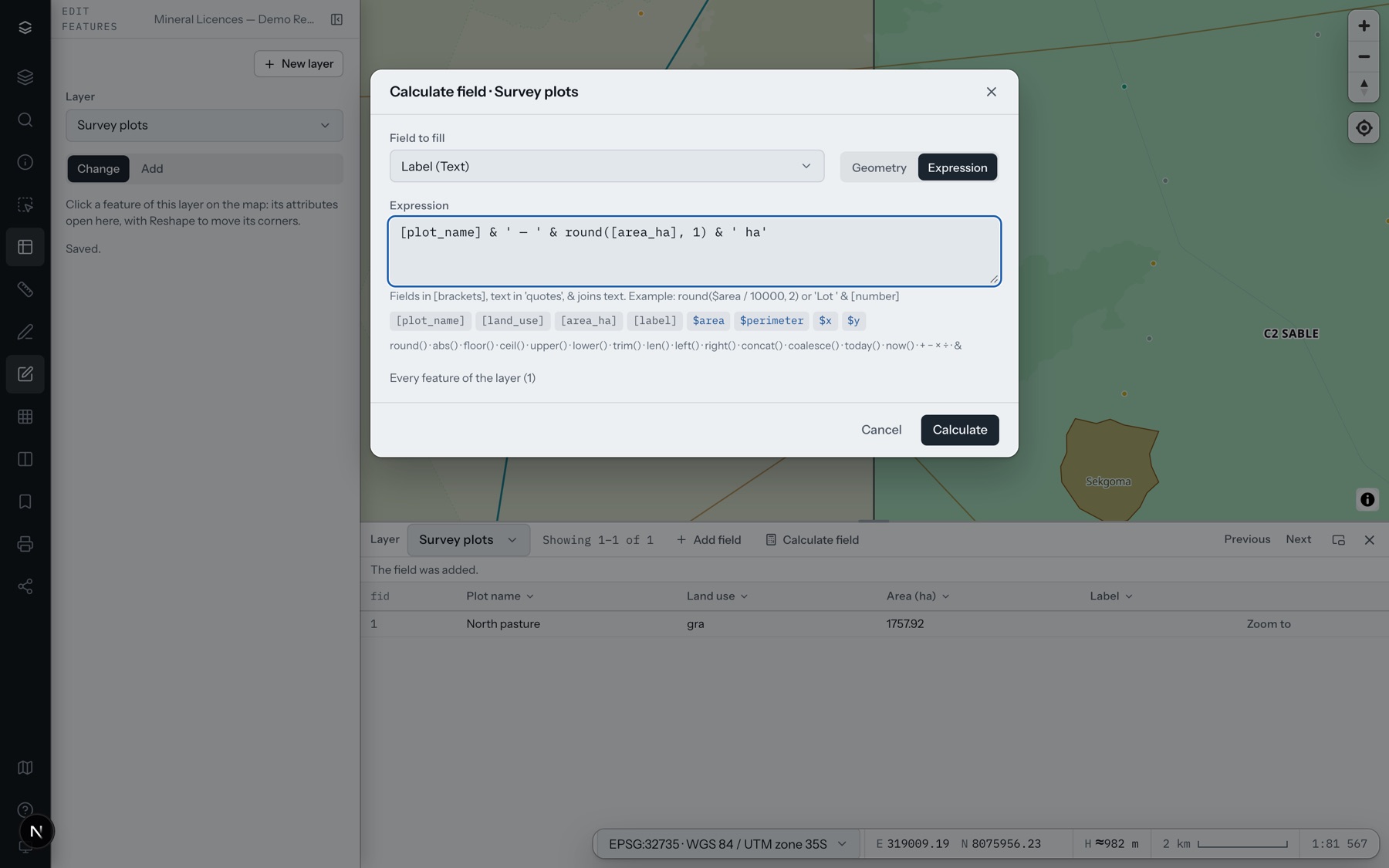
The result is written as the field's type takes it: into a whole number it is rounded, into text it is written as text. A value the field cannot take stops the calculation with a message, and nothing is written. A feature whose value was already right is left alone.
Messages you may see
| Message | What to do |
|---|---|
| editing is switched off in this app | Ask your workspace owner to switch editing on in Studio |
| this layer is not editable; make an editable copy of it first | Make a copy and work on the copy |
| fields can be added only to layers made in Cartema | The layer is delivered: add the field to a copy |
| there is no field “…” in this layer | Check the spelling; use the buttons under the expression box |
| changed by somebody else | Open the feature again and save your change on top |
| nothing of yours to undo on this layer | You made no changes there in the last 24 hours, or they were undone already: restore single features from their history |
| you have changed this layer since; look again | Choose Undo my last edits again to see the session as it is now |
| a copy goes into a layer of the same kind of shape | Choose a layer of points, lines or areas as the features are |
| the line does not cut across any of these features from side to side | Draw the line so that it crosses the feature completely |
| some of the chosen features are not in this layer any more | Select the features again: someone changed or removed some of them |
| this part of the file holds no points (lines, areas), which is what this layer takes | Choose another part of the file, or load it into a layer of that kind |
| replacing a layer's features is for the workspace's team; you can add to its features | Choose Add to its features, or ask the workspace's team |